MH-TranSquare
Simple on-screen frame and region highlight utility for presentations and streams.
Overview
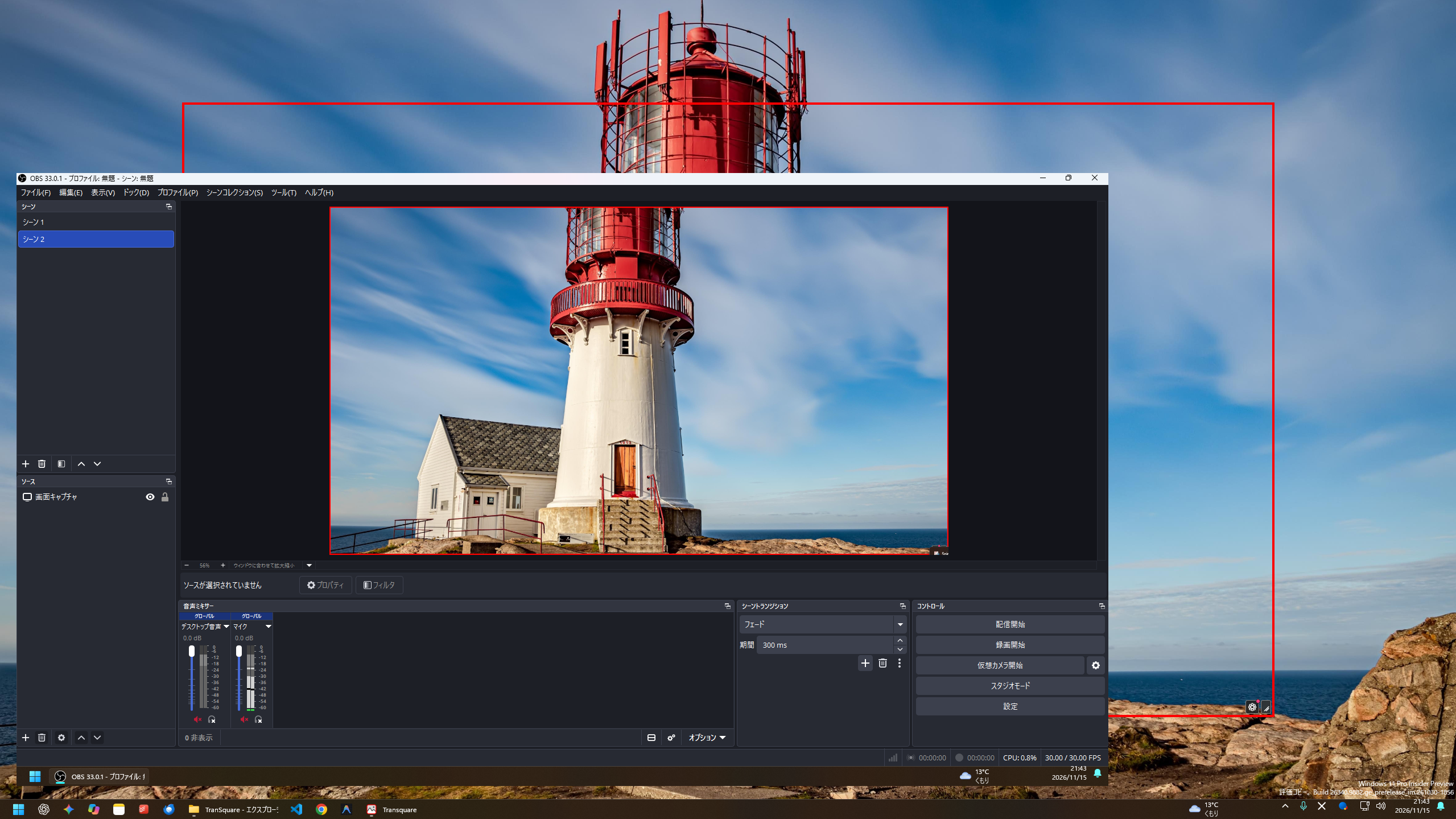
MH-TranSquare is a lightweight Windows overlay utility designed for livestreams, screen recordings, and presentations. It draws a clean, customizable frame on your screen so you can see at a glance which area is being captured by OBS Studio or highlight a specific region for your viewers.
The interior of the frame is completely click-through, allowing you to interact with underlying games, browsers, and creative software without interference. It also integrates with OBS Studio via WebSocket to automatically sync crop values and reflect your streaming or recording status in the frame color.
Main Features
- Full Click-Through Transparency: Mouse clicks and drags pass completely through the inside of the frame, keeping games and apps unobstructed.
- Accidental Drag Prevention (Move & Resize Lock): Movement and resizing are locked by default so the frame never shifts accidentally during a broadcast.
- Alt-Key Grid Snapping: Hold
Altwhile moving or resizing to snap cleanly to configurable grid increments (10 / 20 / 50 / 100 px). - Large Real-Time HUD: Displays live
X / Ycoordinates (from the display’s top-left corner) andWidth × Heightdimensions at the center of the screen while dragging. - Instant Screen Snapping & Presets: Snap the frame to screen corners or center alignments in one click, save up to 4 custom position/size presets, or switch to standard OBS resolutions (FHD / HD / 1:1 / SD).
- Real-Time Hover Preview: Preview border thickness (2–8 px), opacity (10%–100%), and color (Red, Cyan, Lime, Yellow, White) live simply by hovering over menu items.
- OBS Studio WebSocket Integration: Import crop regions from OBS, auto-sync frame changes back to OBS Display Capture crop settings, and automatically change the frame color based on streaming/recording status.
- Local-Only & Multilingual: All settings are stored locally with no external data transmission. Supports English and Japanese.
Basic Usage
- Launch: For the BOOTH Portable Edition, extract the ZIP archive and run
MHTranSquare.exe(no installation required). For the Microsoft Store Edition, launch it from the Start menu after installing. - Position & Size the Frame: Click the
⚙button at the bottom-right of the frame (or right-click the border) and uncheck “Lock Movement” and “Lock Resize”. Drag the border line to move the frame and drag the bottom-right grip to resize it. - Lock to Prevent Mistakes: Once positioned, re-enable “Lock Movement” and “Lock Resize” from the menu so you don’t accidentally move the frame during a stream.
- Open Menu & Toggle Visibility: Open settings anytime via the bottom-right
⚙button, by right-clicking the frame border, or by right-clicking the system tray icon. Left-click the system tray icon to quickly toggle the frame visible or hidden. - Using with OBS Studio: Use the frame as a visual guide for OBS Display Capture cropping, or enable OBS WebSocket Integration to sync crop values automatically.
Controls & Quick Actions
Adjust the frame and toggle visibility quickly using mouse actions and the system tray icon.
| Left-Drag on Frame Border | Move the frame freely (when Lock Movement is off) |
|---|---|
Alt + Left-Drag |
Move or resize while snapping to the selected grid size (10 / 20 / 50 / 100 px) |
| Drag Bottom-Right Grip | Resize the frame (when Lock Resize is off; hold Alt to snap to grid) |
Bottom-Right ⚙ Button / Right-Click Border |
Open the settings menu (⚙ button supports both left-click and right-click) |
| Left-Click System Tray Icon | Toggle frame visibility (Show / Hide) |
| Right-Click System Tray Icon | Open the settings menu |
Menu & Settings Reference
Customize all options from the settings menu (bottom-right ⚙ button, right-clicking the border, or right-clicking the tray icon). Settings are saved automatically.
Locks & Visibility
- Lock Movement / Lock Resize: Prevents accidental dragging or resizing of the frame.
- Always on Top: Keeps the frame above other windows.
- Show in Taskbar: Toggles the taskbar button on or off (you can always access the app from the system tray).
- Hide Frame / Show Frame: Toggles the frame overlay visibility.
Frame Position (Instant Snapping)
Move the frame in one click to a corner (Top-Left, Top-Right, Bottom-Left, Bottom-Right) or center alignment (Screen Center, Top Center, Bottom Center, Left Center, Right Center) of the monitor where the frame is currently located.
Presets & Preset Resolutions
- User Presets (1–4): Save up to 4 custom position and size combinations for quick switching between games or scenes. Use “Clear All Presets...” to remove saved slots.
- Preset Resolutions (for OBS): Resize immediately to
1920 × 1080 (FHD 16:9),1280 × 720 (HD 16:9),1080 × 1080 (1:1 Square), or854 × 480 (SD 16:9).
Alt Snap Grid Size
Choose the grid snap increment used when holding Alt while moving or resizing: 10 px, 20 px (Default), 50 px, or 100 px.
Border Thickness, Opacity & Color (Hover Preview)
- Border Thickness: Choose from
2 px,4 px,6 px, or8 px. - Border Opacity: Adjust from
100% (Default)down to10%in 10% steps. - Border Color: Choose from
Red,Cyan,Lime,Yellow, orWhite.
Hovering over any of these menu items previews the style live on screen; click to confirm your selection.
OBS Studio Integration (WebSocket)
Enable OBS WebSocket in OBS Studio (Tools > WebSocket Server Settings) and open “OBS Integration Settings...” to connect MH-TranSquare with OBS:
- Connection: Configure Host (default:
127.0.0.1), Port (default:4455), and Password (if set), then click “Test Connection”. - Auto-sync frame color on Stream / Record: Automatically changes the frame color based on OBS status (Lime while streaming, Red while recording, Purple when both are active, and your normal color when idle).
- Auto-sync frame size/position to OBS crop: Moving or resizing the frame automatically updates the crop values of the matching OBS Display Capture source in real time.
- Import Crop from OBS: When connected, click “Import Crop from OBS” in the menu to snap the frame precisely to your current OBS crop region.
Language, Reset & Other
- Language: Switch between
日本語andEnglishat any time (auto-detected from OS language on first launch). - Reset Settings...: Restores position, size, and style settings to defaults.
- About MH-TranSquare... / Help: View version and license details or open this official help page.
Specifications & Requirements
| Supported OS | Windows 10 / Windows 11 (64-bit) |
|---|---|
| Distribution | BOOTH (Portable Edition, self-contained without extra runtime) / Microsoft Store |
| Settings File Location | %AppData%\MahorobaLab\MHTranSquare\settings.json |
| Data Transmission | None (local-only processing; BOOTH edition checks a public JSON file on GitHub for updates; OBS integration uses local WebSocket communication) |
| Commercial & Streaming Use | Allowed for personal, commercial, and monetized streams/videos (no attribution required) |
Related Help & Troubleshooting
For SmartScreen warnings on the BOOTH edition, OBS Studio transparency capture setup, and uninstallation steps, please see the Common Help & FAQ section on the portal.